How to disable or enable USB Ports

How often you have witnessed blocked Pen drive or USB drive access in your work place or college or school? I believe many times; in fact every time you try to use the USB drive, you are not allowed, simply because the administrator has disabled USB drive detection on your PC. Again, how often has your data been stolen because someone connected an unauthorized USB to your computer and copied your files?  Well, you don’t need to worry because the solution to disable or enable USB Ports is pretty simple.

Restrict access to USB drives

There are three ways an administrator can prevent using of USB Drives.

They are:
  1. Altering registry values for USB Mass Storage Devices.
  2. Disabling USB Ports from Device Manager.
  3. By Un-installing the USB Mass Storage Drivers.
Lets us look at how we can fix these problems and enable USB on PC.

1. Disable or Enable USB Mass Storage Devices using Registry.

If the administrator is smart then he would definitely do this to ensure a tight blockade. He would alter the settings through regedit command on run console. Now how do you unlock it ? You have to go right into where the administrator has been. Here is how.
  1. Go to Start > Run , type “regedit” and press enter to open the registry editor
  2. Navigate to the following key
HKEY_LOCAL_MACHINE\SYSTEM\CurrentControlSet\Services\USBSTOR
In the right pane, select Start and change the value to 3. (The value 4 will disable USB Storage). Click OK. This will re-enable USB Ports and allow you to use USB or Pen drives.


2. Disabling USB Ports from Device Manager.

If you still don’t find your USB drive working, you may have to look into the Device Manager. The Administrator could have possibly disabled the USB port here. Check out for any possibility in the Device Manager and enable the disabled port by right clicking on selected one and click Enable.


3. By un-installing the USB Mass Storage Drivers.

If the authorities are really worried about security in the school they would take the extreme step of un-installing the USB Mass Storage Drivers. To make things work, just install the device drivers. Here is how you do it.
As when you plug-in your USB drive, Windows will check for drivers, if not found Windows will prompt you to install the driver. This would definitely unlock the Pen drive at your School or office.

4. Use USB Drive Disabler /Enabler.

You can download and use a free tool USB Drive Disabler / Enabler which will allow you to easily enable or disable USB drives on your Windows computer.


Please let us know if you have any questions.

Optimize your Meta Description Tag

The Meta Description Tag (placed between the head and /head tags) is used by some search engines to create the snippets of text that you see right below the results on search queries. It does not carry any weight in the search algorithm of Google, but it does carry a certain weight for Yahoo and other smaller search engines so you should not neglect it altogether.


In order to optimize your Meta Description Tag you should make it dynamic, making sure that it will include the first few lines of text of every single page on your site. A very simple way to do this under the WordPress platform is to make the Description tag equal to the post excerpt, like the code below illustrates.
<meta name="description" content="<?php the_excerpt() ?>" />
Alternatively you can download a plugin called Head META Description. Just upload the plugin, activate it and insert the following line on your header:
<?php head_meta_desc(); ?>
The plugin will generate the Meta Description automatically, either by extracting the first words of your posts or by displaying the post excerpt (you can configure it).

Add Facebook like Box in Blogger Blog

 Dear friends,
Social networking sites like facebook, twitter, google plus etc are parts of blogging. And every site has a way to link with your blog site. However, the above sites provide custom follow or like boxes which help you in many extent. Like box help you to reach your blog to audience by providing them a way to keep in touch.It also helps to grow your traffic as traffic is one of the main objectives for a blogger.


When you start your Facebook page you ask your friends and family members to like it and after that it all depends upon the content you write. If people like your content they will voluntary like your Facebook page. But still you need to provide them with an easy method of doing this. Facebook like box allows your visitors to join you easily and they don't have to find you manually. Facebook developers have made this thing very easy to integrate a Facebook like box in to your Blog by adding a few lines of code in it. No let us take a look at the steps you need to follow.


Steps to add Facebook like Box


  • This process includes the editing of your Blog's template, so it is recommended to take a backup of your Blog. First click on the template from your Blogger Dashboard. Then click on Backup/Restore and download the template from the pop-up window.
  • Now that you have taken the backup, you are ready for the process. Visit the Facebook Developers.
  • You will see a window like the one shown below.


  • Customize the look and feel, height, width of your Like box from this window.
  • Uncheck the show stream if you don't want the latest posts with this widget.
  • Uncheck the header checkbox if you don't want to display "Find us on Facebook".
  • Once you are done with the customization, click on Get code. It would pop-up a window like the one shown below.


  • Click on Edit template from the Blogger dashboard. Copy the code 1 from the above window and paste it just after the <body> tag.
  • Now save the template and click the Layout button.
  • Click on add a gadget from your sidebar. Add HTML/JavaScript gadget and Paste the code 2 in it.
  • Now you are done. Save the arrangement and click on View Blog.

Printer and File Sharing

File and Printer Sharing is a Windows feature wherein all the computers in your network would be able to send communications to a computer or send print jobs to a printer.  All your computers should be part of the main network and the same Workgroup for File and Printer Sharing to work properly.
NOTE:  To view the network group your computers currently belong to, check the Workgroup by opening My Computer (XP) or Computer (Vista & Win 7) on the Start menu and clicking on Properties.
What you can do with this feature:

  • File Sharing – You can access a shared folder on computers that are joined to a Workgroup.  This allows easy sharing of files and folders across a local network.
  • Printer Sharing – Setting this up will require you to ensure that your regular printer is connected directly to a computer that is connected on the network; or if you have a network printer, it should be connected to a networking device such as a hub, switch or router.
NOTE:  The information on this article is provided as reference.  For proper File and Printer Sharing configuration instructions, contact Microsoft or refer to the Microsoft support site.


Sharing a printer in Windows 7
Step 1:
Go to the Start menu and select Devices and Printers.
 
Step 2:
Locate and double-click on the icon of the printer you would like to share.
 
Step 3:
Double-click Customize your printer.
 
Step 4:
On the next window that appears, perform the following:
Step 1:
Go to the Sharing tab.
Step 2:
Check the box next to the Share this printer option.
Step 3:
Enter a Share name for your printer.
Step 4:
Click OK at the bottom to confirm your settings.
 
You should now be able to browse and add your printer on the other computers within your network.
Sharing a printer in Windows Vista
Step 1:
Go to the Start menu and select Control Panel.
 
Step 2:
In the Control Panel window, select Printer under the Hardware and Sound category.
 
Step 3:
Locate and right-click on the icon of the printer that you would like to share then select Open from the menu.
 
Step 4:
In the window that appears, click Printer and select Sharing...
 
Step 5:
On the next window, perform the following:
Step 1:
Go to the Sharing tab.
Step 2:
Check the box next to the Share this printer option.
Step 3:
Enter a Share name: for your printer.
Step 4:
Click OK at the bottom to confirm your settings.
 
You should now be able to browse and add your printer on the other computers within your network.

Sharing a printer in Windows XP
Step 1:
Go to the Start menu, and select Printers and Faxes.
 
Step 2:
In the Printer and Faxes window, locate and double-click the icon of the printer you would like to share.
 
Step 3:
A new window will then appear.  Click Printer and select Sharing…
 
Step 4:
On the next window, perform the following:
Step 1:
Go to the Sharing tab.
Step 2:
Select the Share this printer option.
Step 3:
Enter a Share name: for your printer.
Step 4:
Click OK to confirm your settings.
 
You should now be able to browse and add your printer on the other computers within your network.


Sharing files or folders in Windows 7
Step 1:
Right-click any folder you would like to share and select Properties from the menu.
 
Step 2:
On the next window, go to the Sharing tab and click on the Share… button.
 
Step 3:
On the Choose people to share with window, perform the following:
Step 1:
Click on the drop-down arrow and select a user or group that you would like to share your folder with.
Step 2:
Click on the Add button to add the user.
Step 3:
Click Share at the bottom.
 
Step 4:
Click Done.
 
Your folder and files should now be accessible to the users or groups you specified.
Sharing files or folders in Windows Vista
Step 1:
Right-click a folder you would like to share, and select Share… from the menu.
Step 2:
On the next screen, perform the following:
Step 1:
Click on the drop-down arrow and select a user or group that you would like to share your folder with.
Step 2:
Click on the Add button to add the user.
Step 3:
Click Share at the bottom.
 
Step 3:
Click Done to confirm your settings.
 
Your folder and files should now be accessible to the users or groups you specified.
Sharing files or folders in Windows XP
Step 1:
Right-click on a folder you would like to share, and select Sharing and Security… from the menu.
 
Step 2:
In the next window, perform the following:
Step 1:
Go to the Sharing tab.
Step 2:
Select Share this folder.
Step 3:
Enter a Share name: for your folder.
Step 4:
Click OK at the bottom to confirm your settings.
 
You should now be able browse and access your shared folder from other computers within your network.


Troubleshooting Tips:
  • Before you proceed with enabling File and Printer sharing, make sure that your printer is able to print when directly connected to a computer.  This is to ensure that the printer is working properly.
  • If you are having problems when the printer is directly connected to your router, there is a possibility that your printer has a Static IP address and may be in conflict.  It is recommended to set the printer to DHCP so the router may assign a dynamic IP address for your printer.  You may refer to your printer’s manual or contact your printer’s technical support for assistance.
All Windows OS have a firewall that is enabled by default.  For example, a Windows XP computer has the Internet Connection Firewall (ICF) which may interfere when you are trying to configure File and Printer sharing.  For computers on the network that need to participate in file sharing, it is best to lower the level of firewall security or temporarily disable it.


HOW TO MAKE SINGLE OR ONE WORD NAME ON FACEBOOK


Want to produce an amazing and also eye-catching profile with one word Facebook name, you can very easily do it with these awesome tips provided below:
  • First login to your Facebook account which you want to change.
  • Now go to your browser network setting. There are lots of browsers but I will recommend you to use Firefox for this purpose. In Mozila Firefox go to Tools> Options > Advanced > Network > Settings. You will find out this option bar from the top of your browser.
  • Now select manual proxy and put “119.235.16.41″ in the proxy address and “8080″ in the port address. And make sure to check the box said, “use this proxy server for all protocols”. You should be logged in to your account before changing proxy. Because sometime you may can’t login to your account.  Please note that, this is not a specified proxy. You can use any others as you wish but the proxy should be Indonesian. You can get many proxies from here Indonesia Proxies. This is the main process to have a Facebook without last name. For more check out the screenshot from below:

         
  • Now change the language of your Facebook account to “Bahasa Indonesia”. For that click Gear Icon > Account Settings > Languages. After changing save the setting.


  • Now click on the Name setting from the account settings page. Then just remove the last name and save name with your password. Make you sure that, in this way you can only use the first name as your full name. So, if you want a different name from your full name, first change the first and last name and keep your selected name in the first name section. Now in this method, delete the last name and make one word Facebook name. At the last save and enjoy this feature of Facebook without last name.


Schedule Facebook Updates

Facebook, A major social networking site which has attracted almost all the Internet users and so much addictive that we always forget to have our snacks, finish our works etc.. So we always schedule ourselves to manage the time properly and hence finish our work completely !


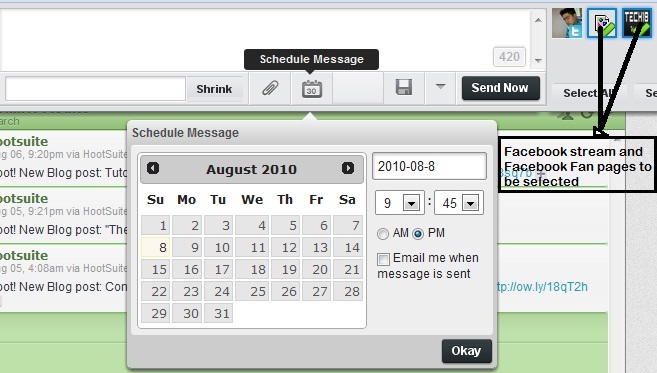
The most important activity any Facebook user does is updating his/her Facebook status. In order to manage time you must also schedule yourself while using Facebook,  So placing a timer besides you and then staying on Facebook doesn’t work all the time. So I have found few online tools,applications and tricks to schedule your Facebook status update while you are busy working or sleeping icon wink 10 ways to schedule Facebook status updates .

LaterBro

With LaterBro you can schedule Facebook status updates, while simultaneously updating Twitter. The service is as bare bones as it gets, simply allowing you to schedule updates. The disadvantage to using LaterBro is that status updates are limited to 140 characters, even though Facebook status updates do allow you 420 characters per update. While you can’t add images to your updates, you can include links, and LaterBro has a native url shortener. Updates can be scheduled every fifteen minutes, and you can also schedule certain updates to be repeated on a daily, weekly, monthly or even yearly basis


All scheduled updates are visible in your account, and you can delete them before hand individually or in bulk.
The status updates on Facebook will feature a link to LaterBro.


Hootsuite

Hootsuite is a web based Twitter application, which is used to post tweets as well as Facebook status updates to your profile as well as the facebook fan pages. These updates can be scheduled easily and very quickly. Below is the screenshot of the Hootsuite application to make you understand its working.


Burn a CD/DVD without using any software

CD/DVD burning capability has been added to Windows Operating System since the release of Windows XP. However, the steps to burn CD/DVD on Windows Vista and Windows 7 are a bit different (and somewhat simpler) comparing to Windows XP.You can use this built-in feature to create a data CD/DVD or an audio CD. The steps below will guide you through the procedures. Although the steps below are based on Windows 7, they are very much similar to Windows Vista.If you're using a Re-Writable CD (CD-RW) or DVD (DVD-RW, DVD+RW), make sure the disc is blank (or "formatted"). You might need to erase (or "format") it before using. For information how to erase a rewritable CD/DVD on Windows Vista or Windows 7 without using a third-party software.


1.Insert a blank recordable/rewritable CD (CD-R) or DVD (DVD-R/RW, DVD+R/RW) disc into the CD burner drive.

2. With a new blank disc, Windows might pop up a prompt asking you which format you want to use (as shown on the image below).As explained on the popup, the option "Like a USB Flash Drive" is more convenient if you want to use the disc as an external storage, which you can add or delete (rewritable disc) files on the fly; however, once the disc is formatted with this option, it can only be read on computers with Windows XP or later. On the other hand, the option "With a CD/DVD Player" is the traditional format of CD/DVD disc and is compatible with a wider range of Windows versions as well as other devices, but requires to burn the disc (or erase the entire disc) all at once.


3.  To keep it simple, we will follow the steps to create traditional CD/DVD, so select "With a CD/DVD Player". Don't forget to change the "Disc title" to something descriptive for your disc, then click "Next".4.   Navigate to the folders or files which you want to burn to the disc, then select (highlight) the folders/files and click "Burn" (located above the file browsing panels)


5.    A new window is now created similar to the following image, showing the selected files and folders added to the queue to burn to disc. Click "Burn to disc".

  
6.   On the next popup "Burn to Disc", verify the disc title and select the maximum burning speed, then click next.


 7.  If you have selected audio files (i.e. MP3), you will be asked to burn the disc as data or audio as shown in the following image. 


8. The burning wizard will start writing data to the disc and will close and eject the CD/DVD when finish.